How do I assign/share a course or lesson with students?
Lessons tab at a glance…
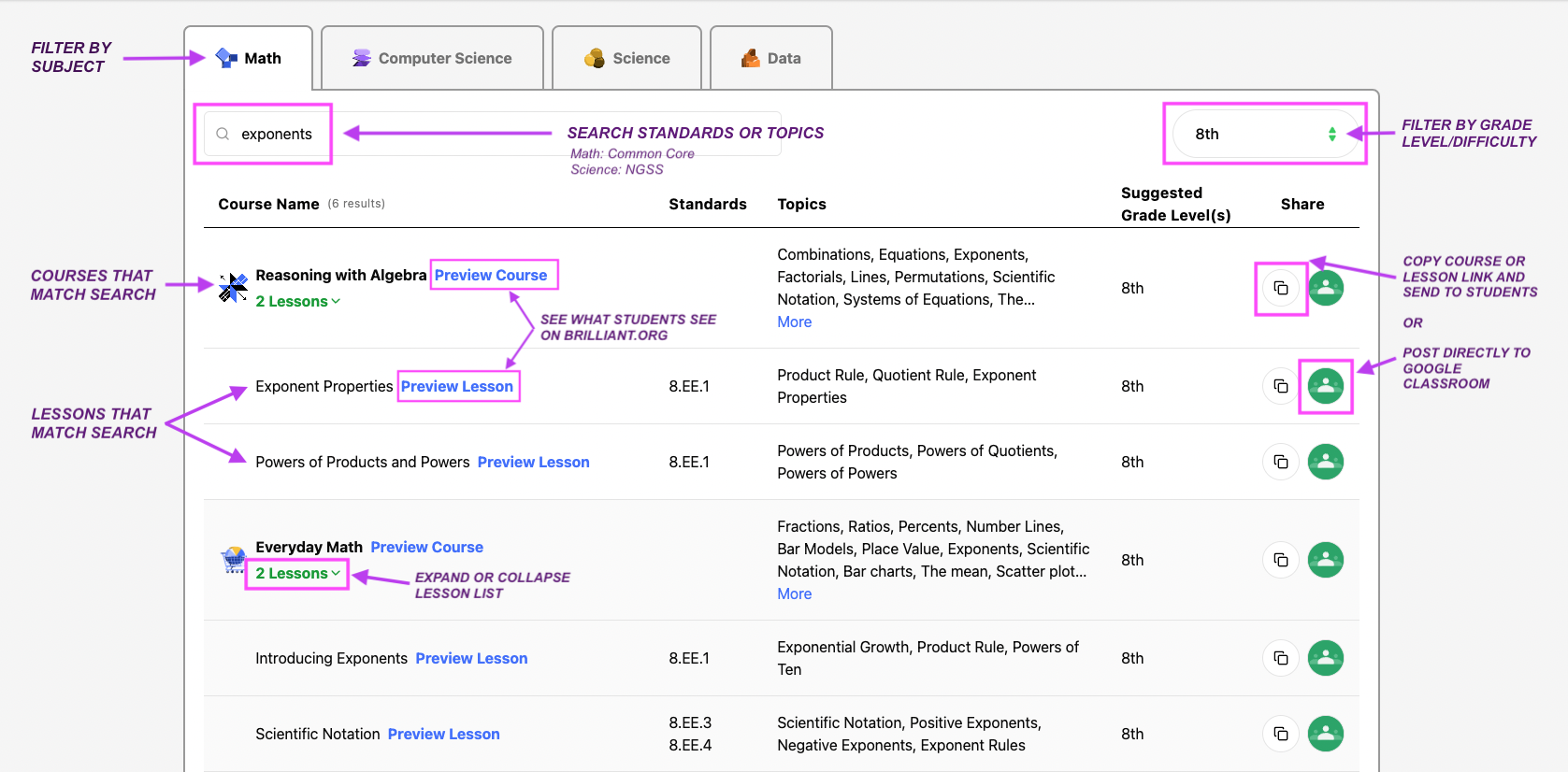
How to preview a course or lesson
In order to preview a course or lesson, you MUST have a brilliant.org student account.
Login to your Educator account at educator.brilliant.org
Go on the Lesson tab.
Filter by subject and suggested grade level or difficulty.
Search by topic and standards to find lessons that align with your daily instructional goals.
You can preview the full course, or an individual lesson within the course by clicking the ‘Preview’ button.
‘Preview’ will send you to Brilliant.org to preview the content. If you have not yet invited yourself to join Brilliant.org as a student, you need to do so first. If you already have a student account set up, click ‘Go to lesson’.
Once on Brilliant.org, you need to login in order to see the exact lesson or course (if you’re not seeing it, try logging in and clicking the ‘Preview’ button again).
How to share a course or lesson using a link
‼️ NOTE: In order for students to access a course or lesson, they MUST have a student account. Only students with Brilliant.org student accounts can access Brilliant’s content.
Login to your Educator account at educator.brilliant.org
Go on the Lesson tab.
Filter by subject and suggested grade level or difficulty.
Search by topic and standards to find lessons that align with your daily instructional goals.
You can share the full course, or an individual lesson within the course, by clicking the ‘Copy’ button. This will copy the link to the specific piece of content.
Share this link with students by posting the link to your LMS (e.g. Google Classroom, Canvas, etc).
Instruct students to login to Brilliant.org, then click the content link.
🤝How to share a course or lesson using Google Classroom
Login to your Educator account at educator.brilliant.org
Go on the Lesson tab.
Filter by subject and suggested grade level or difficulty.
Search by topic and standards to find lessons that align with your daily instructional goals.
Click on the Google Classroom icon for the course, or scroll until you find an individual lesson you’d like to share instead.
If you’re not already, log in to your Google account associated with your school.
Choose which classes you would like to assign the content to, and what form the post will take (e.g. assignment, material etc). Click "GO".
You can decide which students will see the post, and if the assignment is for points. Once you have changed settings to your satisfaction, click the blue button on the top right corner ("Post" or "Assign").
For specific questions regarding the use of Google Classroom, please refer to the Google Classroom Help Center.